
How to Clean and Recalibrate a Clogged Inkjet Print Head Without Buying a New Cartridge
Fix blurry or streaky prints by manually cleaning and recalibrating your inkjet print head using household items — no new cartridge needed.
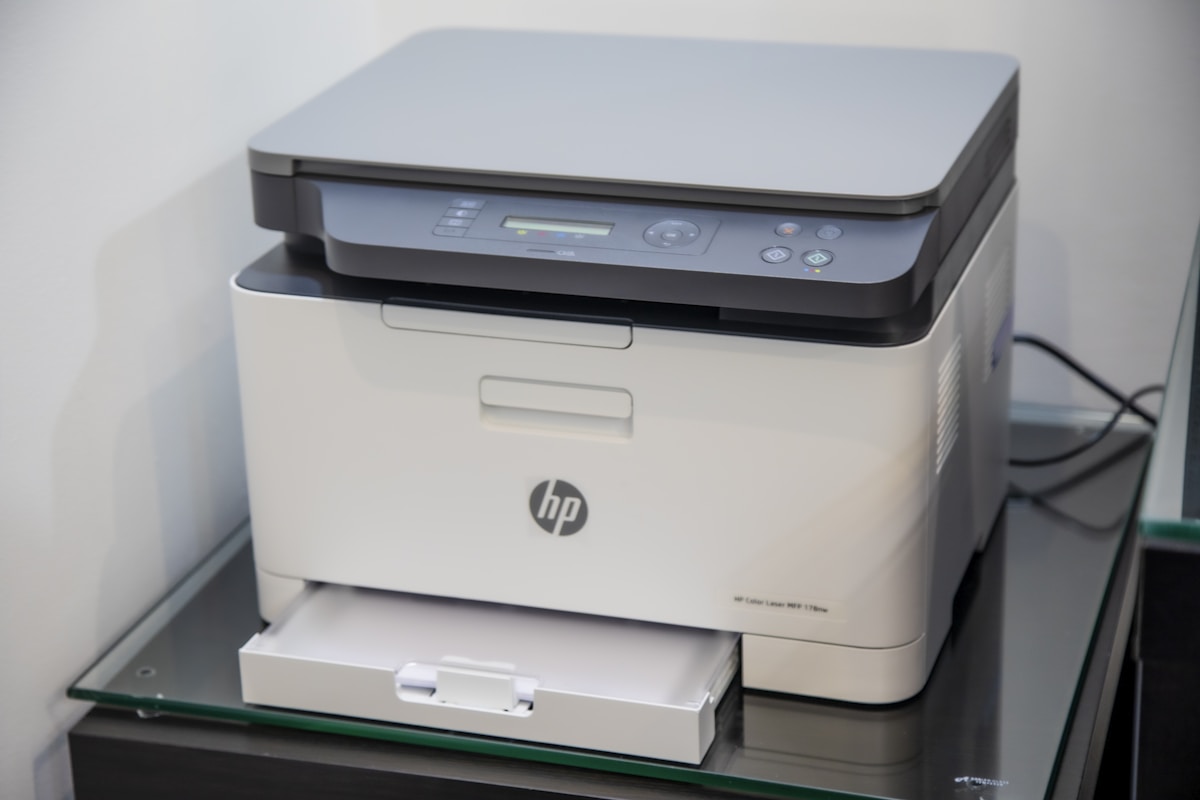
How to Clean and Recalibrate a Clogged Inkjet Print Head Without Buying a New Cartridge
If you’ve ever hit “print” and watched your printer spit out a page full of streaks, missing lines, or washed-out colors, you already know the frustration. Most people assume the cartridge is dead and head straight to the store — but that’s often an expensive mistake. The real culprit is almost always a clogged print head, and the good news is that it’s usually fixable at home.
Inkjet printers work by pushing tiny droplets of ink through microscopic nozzles. When those nozzles dry out or get gunked up with dried ink, the results are immediately visible in your print quality. Whether your printer has been sitting unused for a few weeks or you’ve just noticed a gradual decline in output, a thorough cleaning and recalibration can restore it to near-factory condition — without spending a dime on new cartridges.
This guide walks you through every step of the process, from the software tools built into your printer to hands-on manual cleaning techniques using common household items. We’ll also cover recalibration so your colors and alignment are sharp once the nozzles are clear.
Quick Answer
- A clogged inkjet print head causes streaky, faded, or missing-color prints — not necessarily an empty cartridge.
- Start with your printer’s built-in cleaning utility (available through the software on your computer or the printer’s own menu).
- If software cleaning doesn’t work, manually soak the print head with distilled water or isopropyl alcohol using a lint-free cloth or syringe.
- After cleaning, run a nozzle check and alignment/calibration print from your printer settings.
- Most clogged print heads can be fully restored without buying a new cartridge or print head.
Pro Tip
Always use distilled water rather than tap water when manually cleaning a print head. Tap water contains minerals that can leave deposits inside the nozzles and make the clog worse over time. If distilled water alone isn’t breaking up the dried ink, a 50/50 mix of distilled water and isopropyl alcohol (91% or higher) is a safe and effective solvent for most ink types.
Understanding Why Print Heads Clog
What Causes a Clogged Print Head?
Print heads clog for a few predictable reasons:
- Infrequent use: Ink dries inside the nozzles when the printer sits idle for weeks or months.
- Low-quality or third-party ink: Some aftermarket inks have different viscosities or drying rates that make them more prone to clogging.
- Partial cartridge changes: Swapping cartridges exposes nozzles to air, which accelerates drying.
- Dusty environments: Dust particles can settle into the print head assembly and mix with ink.
How to Tell If Your Print Head Is Clogged (Not the Cartridge)
Before you do anything, confirm the problem is actually a clogged head and not an empty cartridge. Here’s a quick comparison:
| Symptom | Likely Cause |
|---|---|
| Streaky lines across the page | Clogged nozzles |
| One color completely missing | Clogged nozzle for that color channel |
| Faded overall print quality | Partially clogged head or low ink |
| Ink level shows full but prints poorly | Clogged print head |
| Ink level shows empty | Empty cartridge (replace it) |
| Smearing or bleeding ink | Alignment issue or damaged head |
If your ink levels show as adequate but print quality is poor, the print head is almost certainly the issue.
Step 1 — Run the Built-In Software Cleaning Utility
Every major inkjet printer brand includes a built-in head cleaning function. This should always be your first step because it’s the safest and easiest option.
How to Access the Cleaning Utility
On Windows:
- Open Control Panel > Devices and Printers.
- Right-click your printer and select Printing Preferences or Printer Properties.
- Look for a Maintenance, Services, or Utilities tab.
- Click Clean Print Head or Head Cleaning.
On Mac:
- Go to System Settings > Printers & Scanners.
- Select your printer and click Options & Supplies.
- Open the Utility tab and click Open Printer Utility.
- Choose Head Cleaning.
On the printer itself: Many modern printers have a touchscreen or button menu. Look for Setup > Maintenance > Head Cleaning or a similar path in your printer’s manual.
What to Expect
The cleaning cycle typically takes 2–5 minutes. The printer will push ink through the nozzles at higher pressure to flush out dried deposits. After the cycle completes, print a nozzle check pattern (also found in the Maintenance menu) to see if the problem is resolved.
Run the cleaning cycle up to three times if needed, but avoid running it more than that in a single session — it uses a significant amount of ink and can strain the print head.
Step 2 — Manual Cleaning With Distilled Water
If the software utility doesn’t fully clear the clog after two or three cycles, it’s time to get hands-on.
What You’ll Need
- Distilled water (or a 50/50 mix with 91%+ isopropyl alcohol for stubborn clogs)
- Lint-free cloths or coffee filters
- A shallow dish or container
- Nitrile gloves (optional but recommended)
- A plastic syringe or dropper (optional, for targeted application)
- Paper towels
Removing the Print Head
Important: The process varies by printer model. On many Epson, Canon, and HP printers, the print head is either attached to the cartridge or is a separate removable component. Check your printer’s manual or the manufacturer’s website for model-specific removal instructions.
For printers where the print head is integrated into the cartridge (common in many HP models), you can clean the cartridge itself:
- Remove the cartridge from the printer.
- Dampen a lint-free cloth with distilled water.
- Gently press the nozzle plate (the copper or gold-colored strip at the bottom) against the damp cloth for 30–60 seconds.
- Blot — don’t wipe — to avoid damaging the nozzles.
- Repeat until ink flows cleanly onto the cloth.
For printers with a separate, removable print head (common in Epson EcoTank and many Canon models):
- Remove the print head according to your manual.
- Pour a small amount of distilled water into a shallow dish — just enough to cover the nozzle plate by a few millimeters.
- Let the print head soak for 15–30 minutes for light clogs, or up to 2 hours for severe blockages.
- Gently blot the nozzle plate on a lint-free cloth to remove loosened ink.
- If using a syringe, you can draw distilled water up through the ink ports to flush the channels from the inside.
- Allow the print head to air dry for at least 15 minutes before reinstalling.
Reinstalling and Testing
Once the print head is dry and reinstalled, run a nozzle check pattern from your printer’s maintenance menu. You should see a significant improvement. If some nozzles are still partially blocked, repeat the soak with the isopropyl alcohol mixture.
Step 3 — Recalibrate and Align the Print Head
Cleaning alone isn’t always enough. If your prints still look slightly off — misaligned text, color banding, or uneven spacing — you need to recalibrate the print head.
Running a Print Head Alignment
- Go to your printer’s Maintenance or Utilities menu (same location as the cleaning utility).
- Select Print Head Alignment or Align Print Head.
- The printer will print an alignment sheet with a series of numbered or lettered patterns.
- Follow the on-screen instructions to select the best-looking pattern for each row.
- Confirm your selections and the printer will adjust its internal calibration automatically.
Some newer printers perform alignment automatically using a built-in scanner — in that case, you just press start and wait.
Color Calibration
If colors still look off after alignment, check that your printer driver’s color settings match your paper type. Using the wrong paper profile (e.g., glossy settings on plain paper) can cause color shifts that look like a hardware problem but are actually a software setting.
How Often Should You Clean Your Print Head?
Preventive Maintenance Tips
- Print at least one page per week — even a simple color test page — to keep ink flowing through the nozzles.
- Don’t leave the printer unplugged for extended periods. Most printers perform a small automatic maintenance cycle when powered on.
- Store the printer in a dust-free area and keep the lid closed when not in use.
- Use manufacturer-recommended ink when possible, especially for printers with integrated print heads.
What If the Print Head Is Still Clogged After All This?
If you’ve run multiple software cleaning cycles, done a manual soak, and the nozzle check still shows blocked channels, you have a few remaining options:
- Repeat the alcohol soak for a longer period (up to 8 hours overnight).
- Use a commercial print head cleaning solution — these are available online and are formulated specifically to dissolve dried inkjet ink.
- Replace the print head — on many Epson and Canon models, the print head is a separate, purchasable part that costs significantly less than a new printer.
- Contact the manufacturer — if your printer is still under warranty, a persistent clog may be covered.
FAQ
Can I use rubbing alcohol to clean my print head? Yes, but use isopropyl alcohol at 91% concentration or higher. Lower concentrations contain more water and other additives that may leave residue. Always dilute it with distilled water (50/50 ratio) rather than applying it full-strength, as undiluted alcohol can damage some rubber seals inside the print head assembly.
How many times can I run the built-in cleaning cycle? Run it a maximum of three times in one session. Each cycle uses ink to flush the nozzles, so running it excessively wastes ink and can actually dry out the head further if done repeatedly without improvement. Wait a few hours between sessions if you need to try again.
Will cleaning the print head damage it? When done correctly with distilled water or diluted isopropyl alcohol and lint-free materials, manual cleaning is safe. The main risks are using abrasive materials (which can scratch the nozzle plate) or using tap water (which leaves mineral deposits). Avoid pressing hard on the nozzle plate and never use paper towels directly on the nozzle surface.
Why does my printer say the cartridge is full but it still prints badly? This is a classic sign of a clogged print head. The ink is present in the cartridge but can’t flow through the blocked nozzles. Follow the cleaning steps in this guide before assuming the cartridge is defective.
How long does a manual print head soak take? For mild clogs, 15–30 minutes in distilled water is usually sufficient. For severe or long-standing clogs, soaking overnight (6–8 hours) in a 50/50 distilled water and isopropyl alcohol solution gives the best results.
Conclusion
A clogged inkjet print head is one of the most common — and most fixable — printer problems out there. Before you spend money on a new cartridge or give up on your printer entirely, work through the steps in this guide: start with the built-in software cleaning utility, escalate to a manual distilled water soak if needed, and finish with a proper alignment and calibration. In most cases, you’ll have your printer producing clean, sharp output again without spending anything.
The key is patience and using the right materials. Distilled water, a lint-free cloth, and a bit of time are usually all it takes. And once you’ve restored your print head, a simple habit of printing regularly will keep clogs from forming in the first place.