
How to Set Up a Guest Wi-Fi Network at Home to Keep Your Devices Safer
Learn how to create a guest Wi-Fi network at home to protect your main devices and improve your overall home network security.
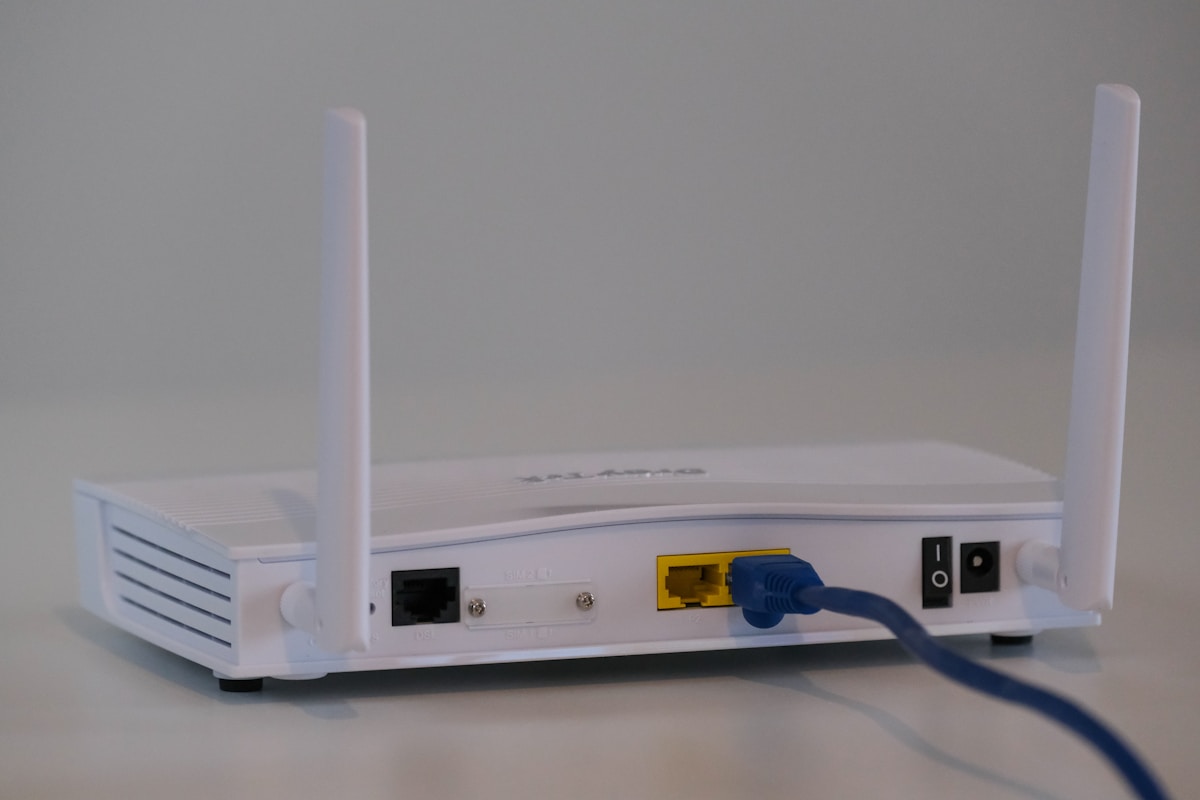
How to Set Up a Guest Wi-Fi Network at Home to Keep Your Devices Safer
If you’ve ever handed your Wi-Fi password to a visiting friend, a repair technician, or a house guest, you may have unknowingly opened a door to your most sensitive devices. Your smart TV, laptop, home security cameras, and work computer all share the same network — and anyone connected to that network can potentially interact with them. That’s a risk most people don’t think about until something goes wrong.
Setting up a guest Wi-Fi network is one of the simplest and most effective steps you can take to improve your home network security. It creates a separate lane of internet access for visitors and less-trusted devices, keeping your primary network — and everything on it — isolated and protected. The best part? Most modern routers already support this feature, and you can have it running in under 30 minutes.
Quick Answer
- A guest Wi-Fi network creates a separate, isolated connection for visitors and smart home devices.
- Most modern routers support guest networks through their admin dashboard or companion app.
- Enabling network isolation (also called “AP isolation”) prevents guest devices from seeing your main devices.
- You should use a strong, unique password for your guest network and update it regularly.
- Guest networks also work great for IoT devices like smart bulbs, thermostats, and cameras.
Why You Should Set Up a Guest Wi-Fi Network
The Risk of Sharing Your Main Network
When someone connects to your primary Wi-Fi, they join the same local area network (LAN) as your other devices. Depending on your router’s settings, this could allow them to discover shared folders, printers, network-attached storage (NAS) drives, and even smart home hubs. Most guests have no malicious intent, but a compromised device — like a phone with malware — can spread problems across a shared network without anyone realizing it.
A guest network solves this by acting as a completely separate segment. Devices on the guest network can access the internet, but they cannot communicate with devices on your main network. It’s like having two separate apartments in the same building — both have access to the street, but neither can walk into the other’s living room.
Who Should Use a Guest Network?
Guest networks aren’t just for households that frequently have visitors. They’re useful for almost everyone. Here’s a breakdown of common use cases:
| Use Case | Why a Guest Network Helps |
|---|---|
| House guests and visitors | Keeps your main devices isolated from unknown devices |
| Smart home / IoT devices | Limits the damage if a smart device is compromised |
| Kids’ devices | Easier to manage and restrict separately |
| Remote workers | Separates work devices from personal or guest traffic |
| Short-term rentals (Airbnb, etc.) | Gives guests internet access without exposing your network |
| Repair technicians or contractors | Temporary access without long-term risk |
What You Need Before You Start
Before diving into the setup process, make sure you have the following:
- Your router’s admin credentials — This is usually printed on a sticker on the router itself. It’s different from your Wi-Fi password.
- A router that supports guest networks — Most routers made in the last five to seven years support this. Check your router’s manual or manufacturer website if you’re unsure.
- A few minutes of uninterrupted time — The process is straightforward, but you’ll temporarily be adjusting network settings.
How to Set Up a Guest Wi-Fi Network: Step-by-Step
Step 1: Log Into Your Router’s Admin Panel
Open a web browser on a device connected to your home network. In the address bar, type your router’s IP address. Common default addresses include:
192.168.1.1192.168.0.110.0.0.1
If none of these work, check the sticker on your router or search for your router model online. Enter your admin username and password when prompted.
Step 2: Find the Guest Network Settings
Once logged in, look for a section labeled Guest Network, Guest Wi-Fi, or Guest Access. This is typically found under:
- Wireless Settings
- Advanced Settings
- Network Settings
The exact location varies by router brand. If you’re using a mesh router system (like Google Nest, Eero, or Orbi), you can usually manage this through the companion smartphone app instead.
Step 3: Enable the Guest Network
Toggle the guest network on. You’ll be prompted to:
- Set a network name (SSID) — Choose something that doesn’t reveal your address or identity. Something like “Guest_Network” or “Visitor_WiFi” works fine.
- Set a password — Use a strong password that’s different from your main network password. A mix of letters, numbers, and symbols is ideal.
- Choose a security protocol — Select WPA2 or WPA3 if available. Avoid WEP, which is outdated and insecure.
Step 4: Enable Network Isolation
This is the most important security step. Look for an option called Client Isolation, AP Isolation, Guest Isolation, or Network Isolation. Enabling this setting ensures that devices on the guest network cannot communicate with devices on your main network.
Some routers enable this by default when you turn on the guest network. Others require you to manually toggle it. Double-check this setting before saving.
Step 5: Set Bandwidth Limits (Optional but Recommended)
Many routers allow you to limit how much bandwidth the guest network can use. This prevents a guest from accidentally (or intentionally) consuming all your available internet speed. Look for options like Bandwidth Control, QoS (Quality of Service), or Speed Limit within the guest network settings.
Step 6: Save Your Settings and Test
Click Save or Apply. Your router may restart briefly. Once it’s back online, grab a phone or another device and connect to the new guest network using the password you set. Confirm that you can browse the internet, and verify that you cannot see or access devices on your main network.
How to Set Up a Guest Network Using a Router App
Many modern routers — especially mesh systems — are managed primarily through a smartphone app rather than a browser-based admin panel. Here’s how the process generally works:
- Open the router’s companion app (e.g., Google Home, Eero, Netgear Orbi, TP-Link Deco, or ASUS Router).
- Navigate to Wi-Fi Settings or Network Settings.
- Look for a Guest Network or Guest Access toggle.
- Follow the prompts to name the network, set a password, and enable isolation.
- Save and share the credentials with your guests.
The app-based approach is often faster and more user-friendly, especially for those who aren’t comfortable navigating a browser-based admin panel.
Should You Put IoT Devices on the Guest Network?
Yes — this is actually one of the best uses for a guest network. Smart home devices like thermostats, light bulbs, robot vacuums, and security cameras are convenient, but they often have weaker security than your laptop or smartphone. If a hacker were to compromise one of these devices, having it on a separate network limits what they can access.
By placing your IoT devices on the guest network (with isolation enabled), you contain any potential breach to that segment. Your computers, phones, and sensitive data remain on the main network, safely out of reach.
Pro Tip
Change your guest network password regularly — especially after visitors leave. Unlike your main network password, which you’d have to update across all your personal devices, the guest network password only affects people you’ve shared it with. Setting a reminder to rotate it every month or after each significant group of visitors is a simple habit that meaningfully improves your security posture. Some routers even let you set an expiration time for guest access automatically.
Common Questions About Guest Wi-Fi Networks
Does a guest network slow down my internet?
A guest network shares the same internet connection as your main network, so heavy use by guests can affect speeds. Using bandwidth limiting features in your router settings can help manage this. In most everyday scenarios, the impact is minimal.
Can guests see my devices on a guest network?
If you’ve enabled network isolation (also called AP isolation or client isolation), guests will not be able to see or communicate with devices on your main network. Always verify this setting is active.
Is a guest network the same as a VPN?
No. A guest network isolates devices from each other on your local network. A VPN encrypts internet traffic and masks your IP address from external websites and services. They serve different purposes and can be used together.
How many devices can connect to a guest network?
This depends on your router. Most consumer routers support between 10 and 30 simultaneous connections across all networks. Check your router’s specifications if you expect a large number of guest devices.
Do I need a separate router for a guest network?
No. Most modern routers support guest networks natively. You don’t need additional hardware.
FAQ
Q: Is setting up a guest Wi-Fi network difficult? A: Not at all. For most routers, it takes fewer than 15 minutes. You log into your router’s admin panel or app, find the guest network settings, enable it, set a name and password, and turn on isolation. The steps are similar across most major router brands.
Q: What’s the difference between my main network and a guest network? A: Your main network connects all your trusted personal devices — laptops, phones, smart TVs, and more. A guest network provides internet access to visitors or less-trusted devices while keeping them isolated from your main network. Devices on the guest network cannot see or communicate with devices on the main network when isolation is enabled.
Q: Should I put my smart home devices on the guest network? A: Yes, this is widely recommended by security professionals. IoT devices often have weaker security, and isolating them on a guest network limits the potential damage if one is ever compromised.
Q: What security settings should I use for a guest network? A: Use WPA2 or WPA3 encryption, a strong unique password, and enable network/client isolation. Optionally, set bandwidth limits to prevent abuse.
Conclusion
Setting up a guest Wi-Fi network is one of the most practical and low-effort security improvements you can make for your home. It takes less than half an hour, requires no extra hardware, and provides meaningful protection for your most important devices. Whether you’re hosting friends, managing a house full of smart gadgets, or simply want peace of mind, a guest network gives you a clean, controlled way to share internet access without exposing your digital life.
The key steps are simple: log into your router, enable the guest network, set a strong password, and make sure isolation is turned on. From there, you can expand the setup by placing IoT devices on the guest network and rotating the password regularly. Small habits like these add up to a much more secure home network over time.
Don’t wait for a security incident to prompt action. Take 20 minutes today, follow the steps above, and give your home network the layer of protection it deserves.